
Workflow guides · 6 min read
How to turn a podcast into useful short videos
Select podcast moments, preserve context and review captions before publishing short videos. A practical workflow with current format guidance and tool choices.
Affiliate disclosure: Some links may earn CreatorStack a commission at no extra cost to you.
At a glance
Select complete ideas, check the surrounding context, then reframe and correct captions. Publish useful clips rather than chasing a promised number or virality score.
The best short clip is a small, complete conversation. Someone arriving halfway through your audience journey should understand the question, follow the answer and leave with something useful. Cutting the most dramatic sentence is easy. Keeping its meaning is the editorial work.
Start with one approved clip before producing a batch. That first export reveals problems with source quality, framing, captions and guest approval while they are still cheap to fix.
Find the idea before choosing the tool
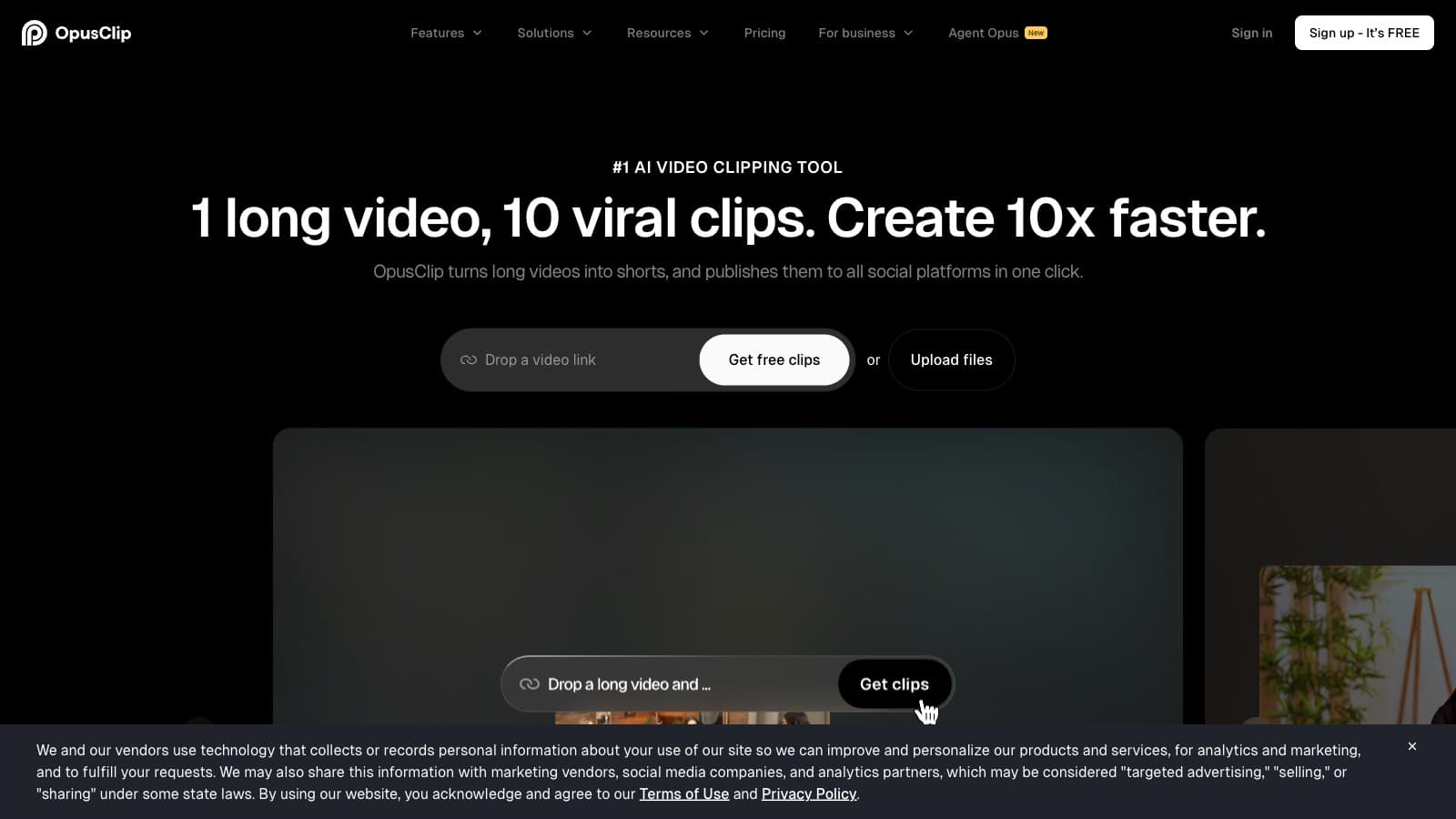
For a short episode you know well, marking timestamps in your existing editor may be enough. An AI clipper becomes more useful when you have a long recording or a backlog: it can suggest candidates you then judge. If you already work in Riverside or Descript, check the capabilities and allowances in that subscription before buying OpusClip separately.
The decision is about where the bottleneck sits. Faster candidate selection does little for a team whose real delay is guest approval. Automatic reframing does little when every useful moment is a screen demonstration that needs a custom layout.
Use the final recording, identify the speakers and keep the full episode available. A transcript helps you search, but the recording tells you whether a pause is hesitation, sarcasm or a change of subject.
A cut that keeps the speaker's meaning
Consider this illustrative interview, not an actual customer recording:
Host: “Should a new business post every day?”
Guest: “Not if it means repeating yourself. For our first month, one useful tutorial a week was manageable. Daily posting only made sense after we had a repeatable production process.”
An automatic highlight might begin “Daily posting only made sense…” A title such as “You must post daily” would contradict the answer. A stronger clip includes the question, the weekly tutorial example and the condition for increasing frequency. Its title could be “When should a small business post more often?”
This cut gives a viewer a decision, not merely a quotation. If it feels slow, shorten repeated phrasing or a redundant pause. Keep “for our first month” and “after we had a repeatable production process”: those phrases explain the limits of the advice.
Review candidates against the same small set of questions:
| Candidate | Keep when | Reject or repair when |
|---|---|---|
| Practical explanation | The problem and answer fit together | The answer depends on a missing earlier example |
| Personal story | Its relevance becomes clear within the clip | It sounds like a general promise of results |
| Strong disagreement | The opposing view is represented accurately | Removing the question makes the speaker sound extreme |
| Demonstration | The important action remains visible | A vertical crop hides the thing being explained |
Scores supplied by clipping tools can help prioritize review. They cannot establish that a clip is accurate or guarantee its performance.
Give each moment a beginning and an ending
Start where the subject becomes clear. “That changed everything” is a weak opening if nobody knows what “that” means. Either include the preceding sentence or add a faithful context heading. Do not fabricate a more exciting premise.
End after the payoff. In the example above, the payoff is the condition for posting more often. A cut immediately after “one tutorial a week” would turn a conditional recommendation into a fixed rule.
Let the thought determine the length, then check the destination. YouTube's current Shorts guidance allows eligible square or vertical videos up to three minutes, with different upload-date conditions for standard and artist channels. That is a format ceiling, not a target duration for every edit.
Reframe around what the viewer needs to see
For two speakers, follow the person speaking unless the listener's reaction adds meaning. Watch the transition itself: a correct crop on either side can still jump awkwardly at the cut. If a hand gesture or object matters, widen the frame instead of making the face as large as possible.
Screen demonstrations often need a different approach. Place the relevant screen detail above or below the speaker, or cut to a close-up of the interface. If the text cannot be read on a phone, the clip has not preserved the demonstration even if the entire screen technically fits.
Use captions after the edit is stable. Otherwise, every timing change can create another subtitle repair. Correct names, amounts and negations first; “can” versus “can't” can reverse the point. Our caption workflow covers the final readability pass.
Approve a reusable package
Watch the exported file with sound, then muted. The first pass checks meaning and pacing; the second checks whether captions and visuals still carry the message. Confirm that guest permission covers short-form reuse and that music or other embedded material can be used on the destination platform.
Keep the source timestamp, approved caption text and an uncaptioned master. A useful filename might be episode-12_posting-frequency_v2, with the original start and end times in your project notes. If a guest corrects one phrase, you can trace it back without searching the whole episode again.
Once that first clip is approved, reuse the layout and caption style. Reuse the production decisions, not an arbitrary promise to extract ten clips from every recording.
Learn from the next few releases
Choose a goal before reading the numbers. Full-episode visits matter when the short is a trailer; enquiries matter when it explains a service. A high view count with no relevant action may still be useful reach, but it is not evidence of sales.
Look for patterns across comparable topics and formats. An early drop can suggest that the opening lacks context; it does not prove the editing tool is wrong. Comments asking the same question may identify a missing explanation worth making into the next clip.
Start with three genuinely different ideas from one episode. Keep the one that needs the least explanation outside the clip, make it accurate, and use what you learn to decide whether a dedicated clipping subscription is worthwhile.
Common questions
Questions people ask.
- How many Shorts should I make from one episode?
- As many as contain useful, self-contained ideas. Do not promise a fixed number before reviewing the episode.
- Can an AI score predict a viral clip?
- Treat scores as suggestions for review. They do not guarantee audience response or business results.
Sources & freshness
This article was refreshed on 29 Sept 2026 using the sources below. A source check verifies published information, not output quality or checkout availability in every region.
What changed: Revised for concrete worked decisions, failure diagnosis and reading flow; checked current primary sources on 29 September 2026.
Descript
Research recorded: 29 Sept 2026
Found a correction? Let us know.