
AI news · 2 min read
ChatGPT adds multi-page PDF scanning on iOS
ChatGPT’s October 1 iOS rollout combines camera scans into one PDF. A useful capture step for briefs and notes, with source checks still needed.
Announcement date:
Affiliate disclosure: Some links may earn CreatorStack a commission at no extra cost to you.
At a glance
ChatGPT’s October 1 iOS rollout adds consecutive page capture combined into one PDF. Open the in-app camera, use its three-dot menu and select Scan. Inspect the captured pages and verify important details before relying on a summary.
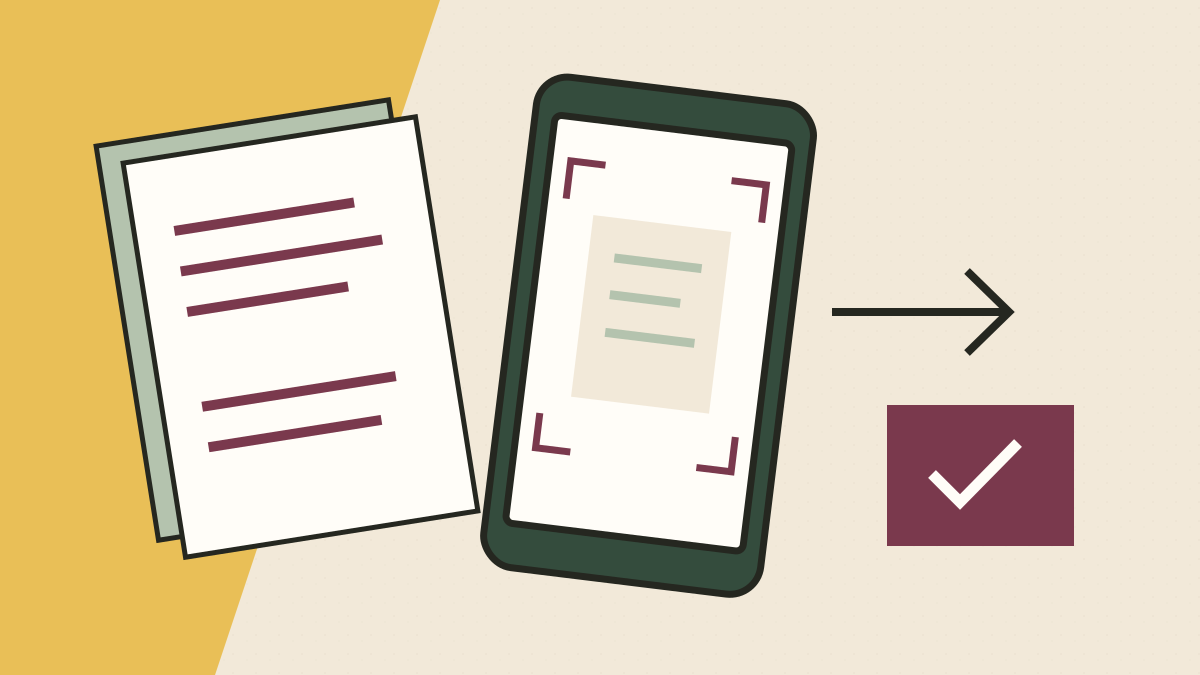
A paper brief spread across several pages is harder to work with when each page becomes a separate attachment. OpenAI’s October 1, 2026 iOS rollout adds consecutive camera capture combined into one PDF for a ChatGPT conversation. We checked that release entry on October 5. OpenAI’s dated release notes.
The documented path is the in-app camera’s three-dot menu, then Scan. Availability is a rollout, so the absence of the option in one account is not evidence that everyone has received it. The entry does not establish Android scanning or a developer API change. Camera-scan availability.
A better input still needs a check
The useful change is capture and assembly. Keeping a set of notes together can make it easier to ask about the whole brief and compare its requirements. That does not, by itself, establish flawless recognition of handwriting, tables or small print. We have not tested those cases.
Consider an illustrative two-page brief: the first page describes a video idea and the second lists delivery requirements. Before asking for a script, inspect the PDF for missing edges, incorrect order or unreadable text. Then ask the assistant to summarize the brief and identify which page supports each requirement.
Compare one number and one important instruction with the original. If a duration, deadline or required phrase is misread, correct that input before generating more work from it. A polished script can hide an error inherited from a blurry page.
This is most useful when the paper is the source you already have. A legible original digital document avoids the extra capture step. The release entry supplies no new pricing or upload allowance, so check your account’s current limits rather than assuming scanning changes them.
Next action: scan one short set of notes and verify its page order, legibility and key requirements before expanding the workflow. The research-file preparation guide explains why document structure matters, and the AI output evaluation guide gives a practical way to check the resulting answer.
Common questions
Questions people ask.
- Does this announcement confirm Android scanning?
- No. This release entry specifies an iOS rollout; it does not establish the same camera-scanning feature on Android.
- What should I check before using a scanned brief?
- Check page order and legibility, then compare important numbers and requirements with the original. Ask the assistant to identify where each important conclusion came from.
Sources & freshness
This article was refreshed on 5 Oct 2026 using the sources below. A source check verifies published information, not output quality or checkout availability in every region.
What changed: New coverage of the October 1 iOS capture workflow, with a practical check for multi-page briefs and handwritten notes.
ChatGPT
Research recorded: 29 Sept 2026
Found a correction? Let us know.